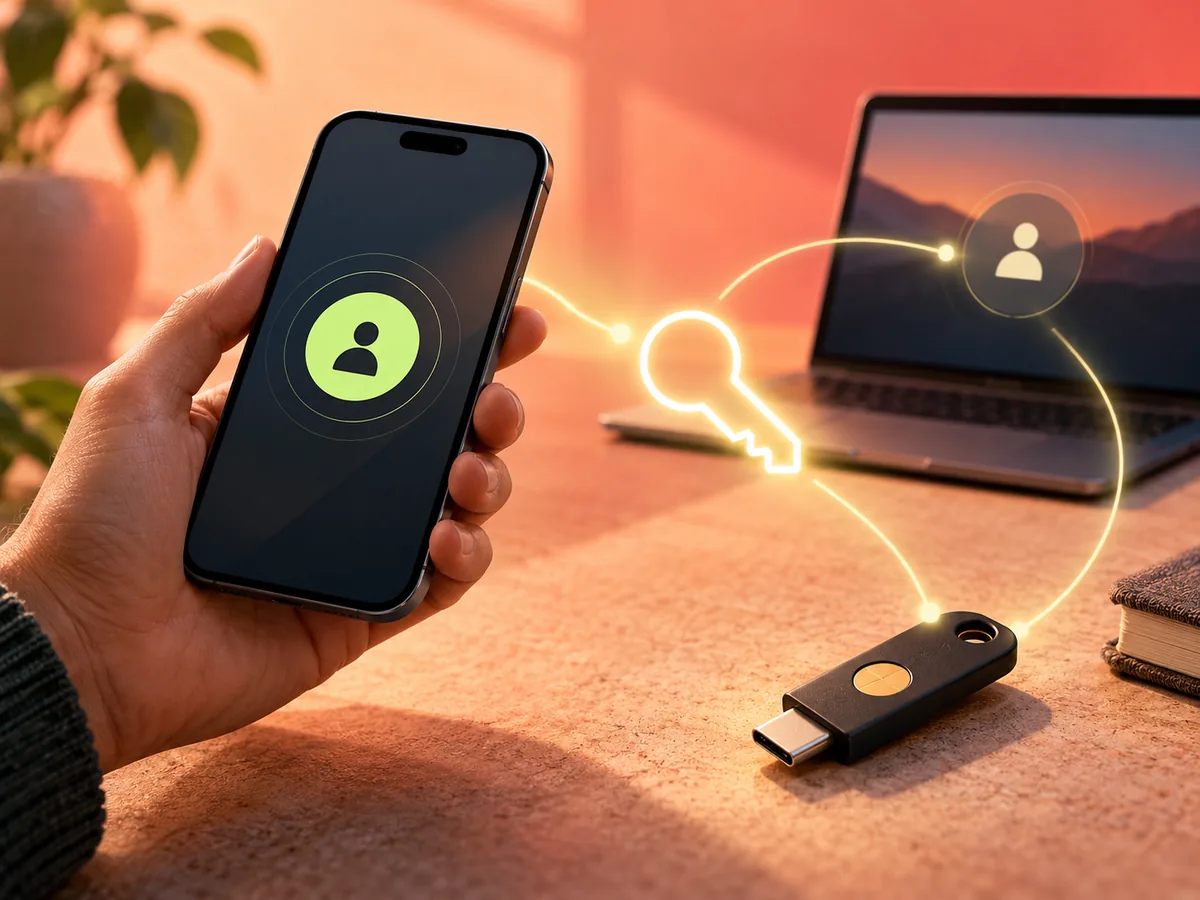
Passkeys replace a typed password with a cryptographic credential held by a device or credential provider. You usually unlock it with the same local method you use for the device: a PIN, fingerprint, face scan, or hardware security key.
The FIDO standards behind passkeys bind a credential to the legitimate service, which is why passkeys are designed to resist phishing. The service stores a public key; the private key used to prove it is you remains with the authenticator.
That stronger sign-in does not make account planning optional. Before changing an important account, check where the passkey will live, how you will use it on another device, and how recovery works.
This checklist is for consumer accounts and ordinary workplace use. An organization with regulated or high-assurance systems may require managed devices, hardware security keys, or a specific identity policy.
First, understand what changes
A password is a shared secret: you and the service both rely on knowledge derived from the same credential. It can be typed into the wrong site, reused, phished, or exposed in a server breach.
A passkey uses a key pair scoped to the legitimate website or app. The service keeps the public key. The private key remains under the control of the authenticator or passkey provider and is used only after local user verification. The browser or operating system checks the site’s identity, which is what gives passkeys their phishing resistance.
Your fingerprint or face is normally used to unlock the device-held credential; it is not sent to the website as the passkey. The exact local unlock options depend on the device and provider.
1. Know where the passkey is stored
A passkey may be synchronized by an operating-system account or credential manager, or it may be bound to a particular device such as a hardware security key. Those models have different tradeoffs.
A synchronized passkey can be available across devices connected to the same provider. A device-bound passkey offers tighter physical control but needs a backup plan if the device is lost or damaged.
During setup, read the interface closely. “Save a passkey” is incomplete information unless you know which account, device, browser profile, or password manager will store it.
The FIDO Alliance distinguishes synced passkeys, which a provider can make available across a user’s devices, from device-bound passkeys, which do not leave the device that holds them. A hardware security key is a common device-bound example. Neither model is automatically right for everyone: synced credentials emphasize availability, while device-bound credentials offer direct control and require deliberate backup.
2. Secure the provider account
If passkeys synchronize through a platform account or password manager, access to that provider becomes part of your security and recovery chain. Protect it with a strong device lock and the provider’s recommended account-security options.
Only create passkeys on devices you own or intentionally manage. Anyone who can unlock a device may be able to use credentials available on it, depending on the device and provider configuration.
Review the recovery options for the provider account itself. If a phone number, email address, recovery code, or another signed-in device can restore access, protect those routes too. A strong passkey on one service does not compensate for a weak recovery path into the password manager or platform account holding it.
3. Add more than one route for critical accounts
For an account you cannot afford to lose, avoid relying on one physical object unless the service’s recovery process is well understood. Options may include a second passkey on another device, two hardware security keys, a synchronized provider with tested recovery, or a service-specific recovery method.
The right combination depends on the service. Do not assume every site supports multiple passkeys or the same cross-device flow.
For a device-bound setup, two separately stored hardware keys are a common pattern: one for daily use and one backup kept somewhere secure. For a synchronized setup, confirm that you can recover the provider account on a replacement device without relying on the device you may have lost.
4. Test before removing the old method
Create the passkey, sign out, and test a fresh sign-in. If you use more than one device, test the second device too. Confirm that you recognize the account and provider prompts.
Then review the service’s security page. Some services treat a passkey as an additional sign-in method while leaving the password active. FIDO guidance notes that keeping phishable fallback and recovery paths limits the account’s overall phishing resistance. A passkey can protect one route while an attacker targets a weaker route that remains.
Do not remove a fallback until the passkey works and you understand what recovery would require.
After the test, name each passkey clearly if the service allows it—for example, “personal phone,” “work laptop,” or “backup security key.” Remove credentials for devices you no longer control. A passkey list that only shows several identical device names is difficult to audit during an emergency.
5. Plan for loss, replacement, and shared devices
Ask three concrete questions:
- What happens if the phone is lost tonight?
- What happens when you replace the computer next year?
- What happens if the sign-in must occur on a borrowed or shared device?
Cross-device sign-in can allow one device to help authenticate on another, but availability and the exact prompts depend on the service, browser, operating system, and nearby-device support. For shared computers, avoid saving a personal passkey into a shared profile.
Google’s passkey guidance describes a common cross-device flow in which a computer displays a QR code, a nearby phone scans it, and the user approves with the phone’s screen lock. The devices verify proximity, commonly using Bluetooth. That lets the phone authenticate a sign-in without copying the passkey into the computer’s browser profile.
Do not scan an unexpected sign-in QR code or approve a prompt you did not initiate. Phishing resistance protects the credential’s use for the legitimate service; it does not make every surrounding message, support call, or account-recovery request trustworthy.
6. Review what remains phishable
Many accounts add passkeys without removing passwords, SMS codes, or email recovery. That is useful during migration, but an attacker may still target the weaker route.
Open the account’s security settings and list every way someone can sign in or recover access. Strengthen or remove methods you no longer need, but only after testing recovery. Pay particular attention to old phone numbers, unused email accounts, app passwords, remembered sessions, and recovery questions.
A passkey can greatly improve the sign-in path you use. The account’s practical security is still shaped by every active fallback and by the service’s recovery process.
7. Know how deletion works
Deleting a passkey from a website and deleting it from a password manager are related but distinct actions. A service may still list a registered credential after its local copy has been removed, while a provider may still show a passkey that the service no longer accepts.
When retiring a device or credential, review both sides where possible: the account’s security page and the passkey provider. Keep at least one tested sign-in and recovery route active before deleting another.
A practical setup sequence
For an important personal account, use this order:
- Update the device and browser you will use.
- Review and secure the account’s recovery email, phone, and existing MFA.
- Create the first passkey and record where it was stored.
- Sign out and test a fresh sign-in.
- Test access from a second device or the intended cross-device flow.
- Add a second credential or confirm the provider’s recovery process.
- Label the credentials and remove only the fallback methods you have deliberately replaced.
If any step is unclear, stop before deleting the old method. A slower migration is better than a secure account you cannot enter.
Keep the mental model simple
A password is a reusable secret you type. A passkey is a cryptographic credential your authenticator uses for the correct service after you unlock it locally.
That design removes common password problems and raises the cost of phishing. The remaining work is operational: know where the credential lives, protect the provider, keep a tested backup, and review weaker recovery paths.
The safest switch is not the fastest one. It is the one you have tested from a second device and could recover from without improvising.